- API Key Authentication
- Change Proxy IP
- List Available Locations
- Change Proxy Location
- Change Proxy IPv4 Rotation
- Change Proxy IPv4 Whitelist
- Append Proxy IPv4 Whitelist
- Get IP Auth info
- IOS
- MacOS
- Android
- Windows
- FoxyProxy
- SwitchyOmega
- Chrome
- Firefox
- Brave
- AdsPower
- Multilogin
- GoLogin
- Bit Browser
- Ghost
- Sphere
- Clone Browser
- Octo
- Incogniton
- Dolphin
- AntBrowser
- VMLogin
- HideMyAcc
- Accepted Payment Methods
- IP Blocking
- IP Whitelisting Authentication
- IP Rotating
- Scrapy with ProxyPanel
- Buying with Cryptocurrency
- Selenium with ProxyPanel
- Urllib3 with ProxyPanel
- Requests with ProxyPanel
- Playwright with ProxyPanel
- HTTPX with ProxyPanel
- Beatutiful Soup with ProxyPanel
Integration
ClonBrowser
ClonBrowser is a specialized browser designed to streamline repetitive tasks. With its automation capabilities, this browser can handle thousands of tasks efficiently, saving significant amounts of time. It's equipped to automate various actions such as clicking, scrolling, filling web forms, and opening URLs based on predefined rules and logic.
Setting up proxies using ClonBrowser
Download ClonBrowser from the official website and register for an account.
To create a new browser, click on the "+ New Browser" button in Clon.

Once you've configured your browser settings, navigate to the proxy section and click on the "+ New" button.

Go to your Dashboard panel and navigate to the "My Proxy" section to view your IP information.
Click on the "Show Password" button and enter your account password to display your proxy password.
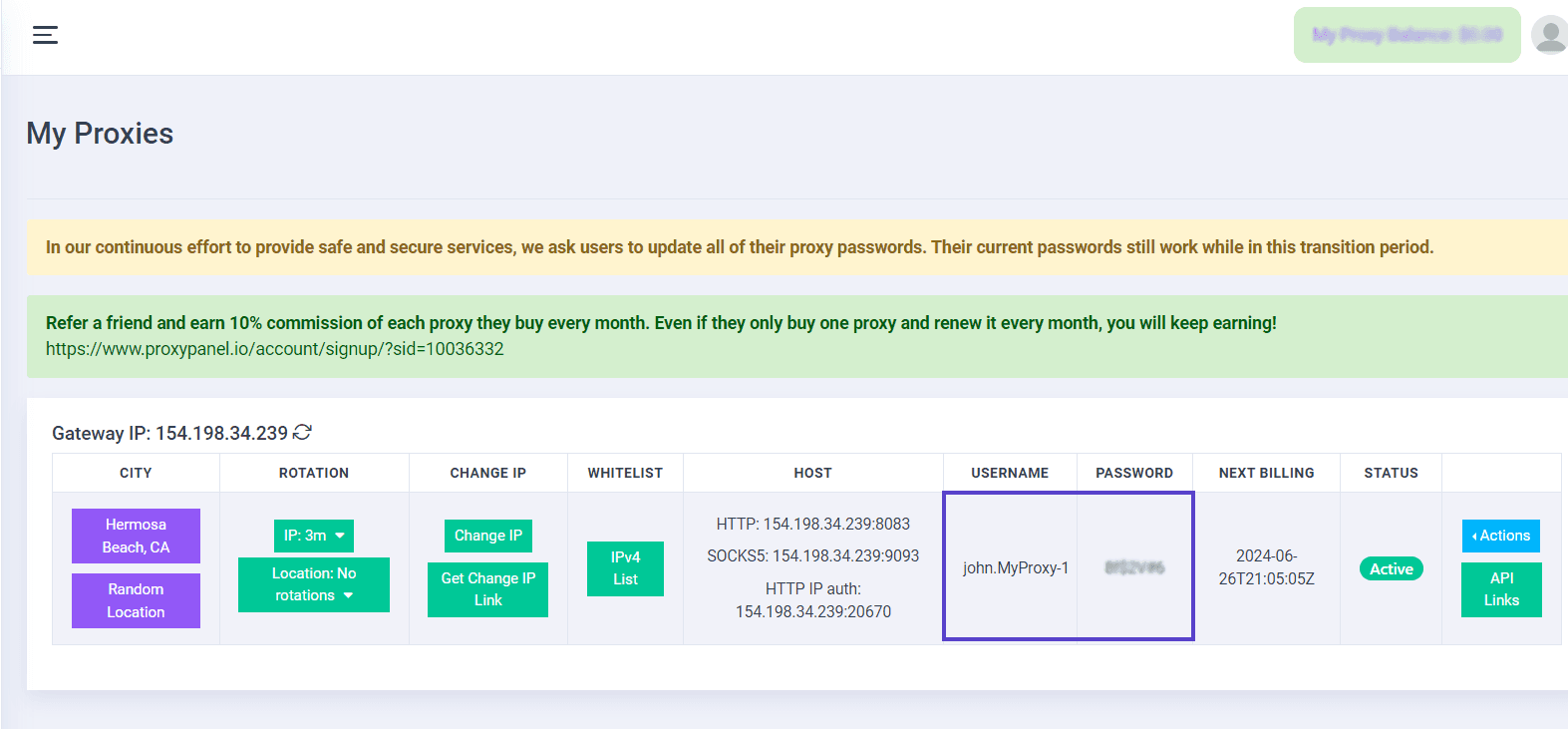
Proceed by providing the necessary details for your proxy configuration in the designated fields.
You have the option to verify the functionality of your proxies by accessing the "Connect Test" button. Once you've confirmed that everything is functioning as expected, proceed to save your settings by clicking on "Save".

Complete the setup process by clicking on the "Create Browser" button.

Save all settings and finally click "Launch"

Congratulations! You've completed the setup of your proxies. With multiple browser profiles and proxies, you can securely and anonymously browse the internet, keeping your online presence hidden and protected. Enjoy the enhanced privacy and versatility that ClonBrowser offers!