- API Key Authentication
- Change Proxy IP
- List Available Locations
- Change Proxy Location
- Change Proxy IPv4 Rotation
- Change Proxy IPv4 Whitelist
- Append Proxy IPv4 Whitelist
- Get IP Auth info
- IOS
- MacOS
- Android
- Windows
- FoxyProxy
- SwitchyOmega
- Chrome
- Firefox
- Brave
- AdsPower
- Multilogin
- GoLogin
- Bit Browser
- Ghost
- Sphere
- Clone Browser
- Octo
- Incogniton
- Dolphin
- AntBrowser
- VMLogin
- HideMyAcc
- Accepted Payment Methods
- IP Blocking
- IP Whitelisting Authentication
- IP Rotating
- Scrapy with ProxyPanel
- Buying with Cryptocurrency
- Selenium with ProxyPanel
- Urllib3 with ProxyPanel
- Requests with ProxyPanel
- Playwright with ProxyPanel
- HTTPX with ProxyPanel
- Beatutiful Soup with ProxyPanel
Integration
Incogniton Browser
Incogniton is a standout anti-detect browser that offers robust online data privacy and the ability to maintain multiple browsing profiles effortlessly. Each profile has a unique digital fingerprint, effectively simulating different users on the same browser. Compatible with both Mac and Windows, Incogniton is user-friendly and provides various subscription packages tailored to individual needs, ensuring a secure and efficient browsing experience. A free starter package is available for new users.
Setting up proxies using Incogniton Browser
Start by downloading and installing Incogniton Browser. Create an account and log in to get started.
Navigate to "Profile Management" to create a new profile, then click on "New Profile" to proceed.

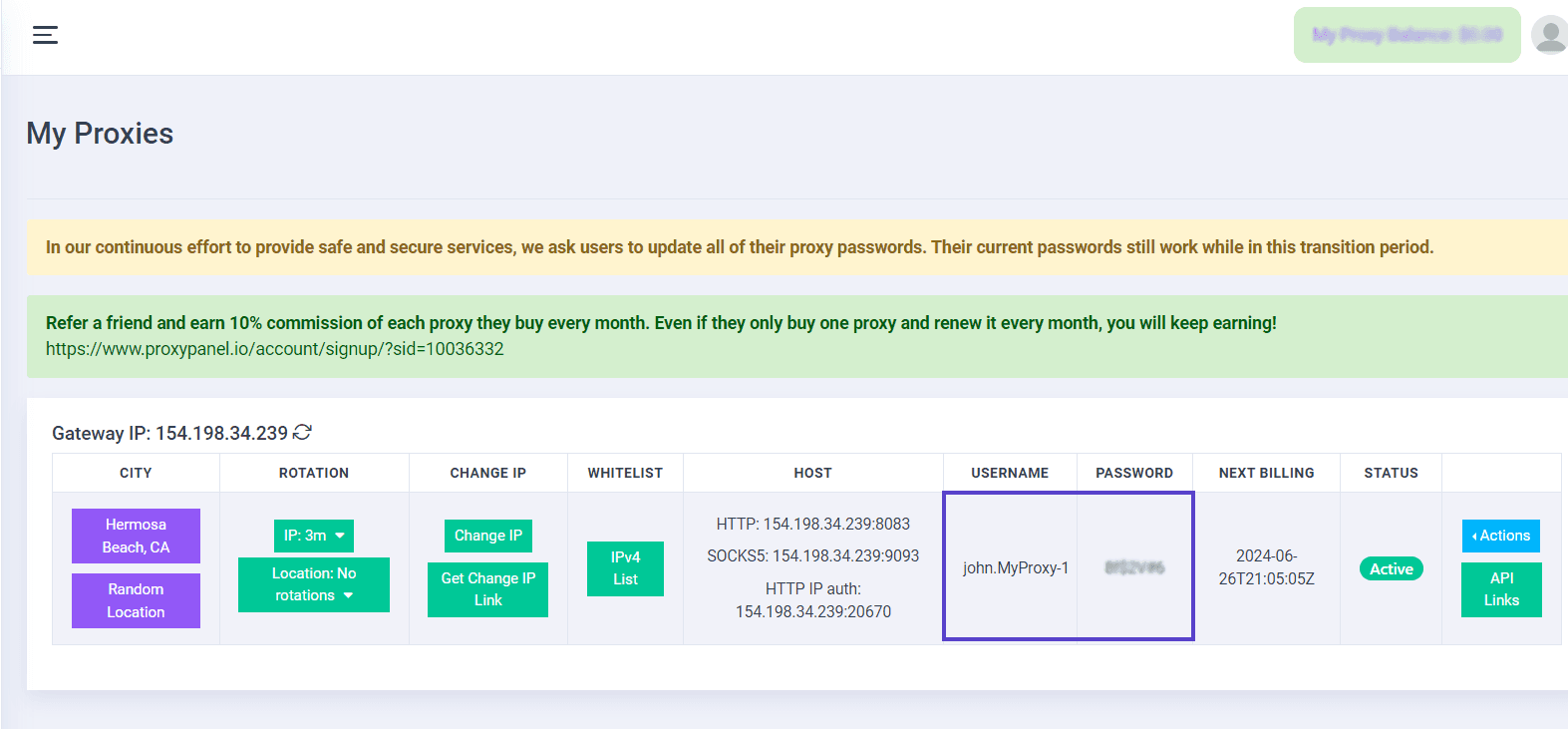
Go to your Dashboard panel and navigate to the "My Proxy" section to view your IP information.
Click on the "Show Password" button and enter your account password to display your proxy password.
Proceed by entering the required details for your proxy configuration in the specified fields, then click the “Create Profile” button to save your profile.

Once you've filled out all the proxy connection details, you can verify if the proxies are functioning correctly by clicking on the "Check Proxy"
To see that everything works as expected, press "Start" and launch the browser.

That’s it! You’ve successfully integrated ProxyPanel with Incogniton Browser.