- API Key Authentication
- Change Proxy IP
- List Available Locations
- Change Proxy Location
- Change Proxy IPv4 Rotation
- Change Proxy IPv4 Whitelist
- Append Proxy IPv4 Whitelist
- Get IP Auth info
- IOS
- MacOS
- Android
- Windows
- FoxyProxy
- SwitchyOmega
- Chrome
- Firefox
- Brave
- AdsPower
- Multilogin
- GoLogin
- Bit Browser
- Ghost
- Sphere
- Clone Browser
- Octo
- Incogniton
- Dolphin
- AntBrowser
- VMLogin
- HideMyAcc
- Accepted Payment Methods
- IP Blocking
- IP Whitelisting Authentication
- IP Rotating
- Scrapy with ProxyPanel
- Buying with Cryptocurrency
- Selenium with ProxyPanel
- Urllib3 with ProxyPanel
- Requests with ProxyPanel
- Playwright with ProxyPanel
- HTTPX with ProxyPanel
- Beatutiful Soup with ProxyPanel
Integration
Octo Browser
Octo Browser is a powerful web browser that enables you to create multiple instances or profiles on your device. Each instance comes with its own unique browser fingerprint, allowing you to maintain separate browsing sessions simultaneously on a single device. This feature ensures that each session has its own settings and identity, enhancing privacy and versatility while browsing online.
Setting up proxies using Octo
Start by downloading and installing Octo Browser. Create an account and log in to get started.
Navigate to the Proxies section and select "Add Proxy" to input your proxy configuration details.

Go to your Dashboard panel and navigate to the "My Proxy" section to view your IP information.
Click on the "Show Password" button and enter your account password to display your proxy password.
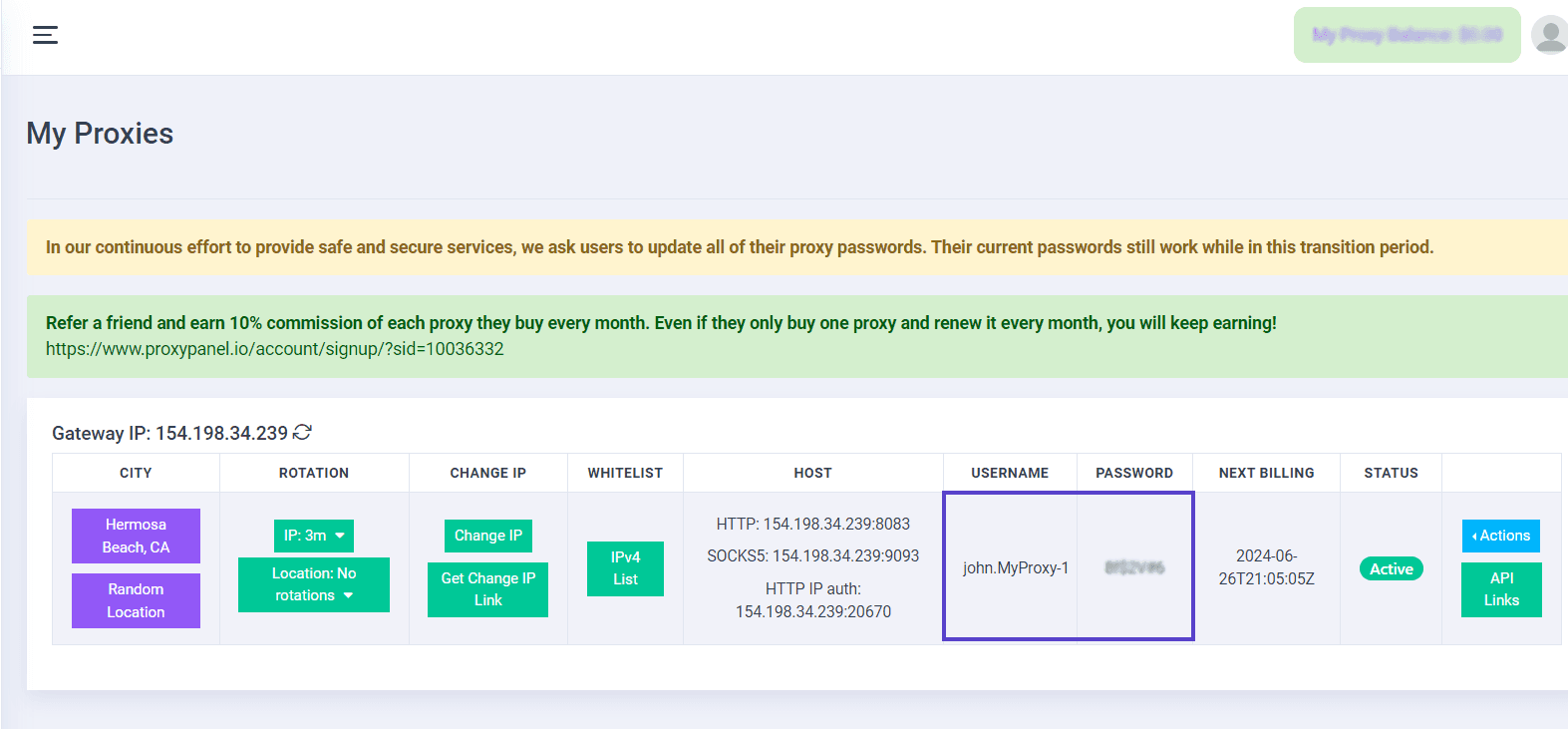
In the window that appears, simply enter the required information for your proxy.

Ensure to enable the "Check Proxy" option to verify the functionality of the proxy. Then, click "Confirm" to proceed.
Navigate to the Profiles section and select "Create Profile" to initiate the setup of a new profile. Customize your profile by adjusting settings related to user agents, cookies, and hardware/software parameters to suit your preferences.

Once your profile is configured, you can assign a pre-configured proxy to it. Access the Proxy section within the profile settings, or navigate to the Connections tab while editing the profile to make your selection.

Finally, click on the ▶Start button to launch a new instance of the Chromium browser with your configured profile and proxy settings.

That’s it! You’ve successfully integrated ProxyPanel with Octo Browser.