- API Key Authentication
- Change Proxy IP
- List Available Locations
- Change Proxy Location
- Change Proxy IPv4 Rotation
- Change Proxy IPv4 Whitelist
- Append Proxy IPv4 Whitelist
- Get IP Auth info
- IOS
- MacOS
- Android
- Windows
- FoxyProxy
- SwitchyOmega
- Chrome
- Firefox
- Brave
- AdsPower
- Multilogin
- GoLogin
- Bit Browser
- Ghost
- Sphere
- Clone Browser
- Octo
- Incogniton
- Dolphin
- AntBrowser
- VMLogin
- HideMyAcc
- Accepted Payment Methods
- IP Blocking
- IP Whitelisting Authentication
- IP Rotating
- Scrapy with ProxyPanel
- Buying with Cryptocurrency
- Selenium with ProxyPanel
- Urllib3 with ProxyPanel
- Requests with ProxyPanel
- Playwright with ProxyPanel
- HTTPX with ProxyPanel
- Beatutiful Soup with ProxyPanel
Integration
Sphere Browser
Sphere Browser is a versatile web browser designed for seamless internet browsing and website access. Its user-friendly interface, tabbed browsing, and bookmarking features enhance your browsing experience, allowing you to navigate websites effortlessly and search for information efficiently.
Setting up proxies using Sphere
Download the Sphere application, then open it and sign up.
To optimize your browsing experience in Sphere Browser, ensure that Quick Session Mode is switched off upon opening the browser, then click on the "New Session" button to initiate a new browsing session.

Go to your Dashboard panel and navigate to the "My Proxy" section to view your IP information.
Click on the "Show Password" button and enter your account password to display your proxy password.
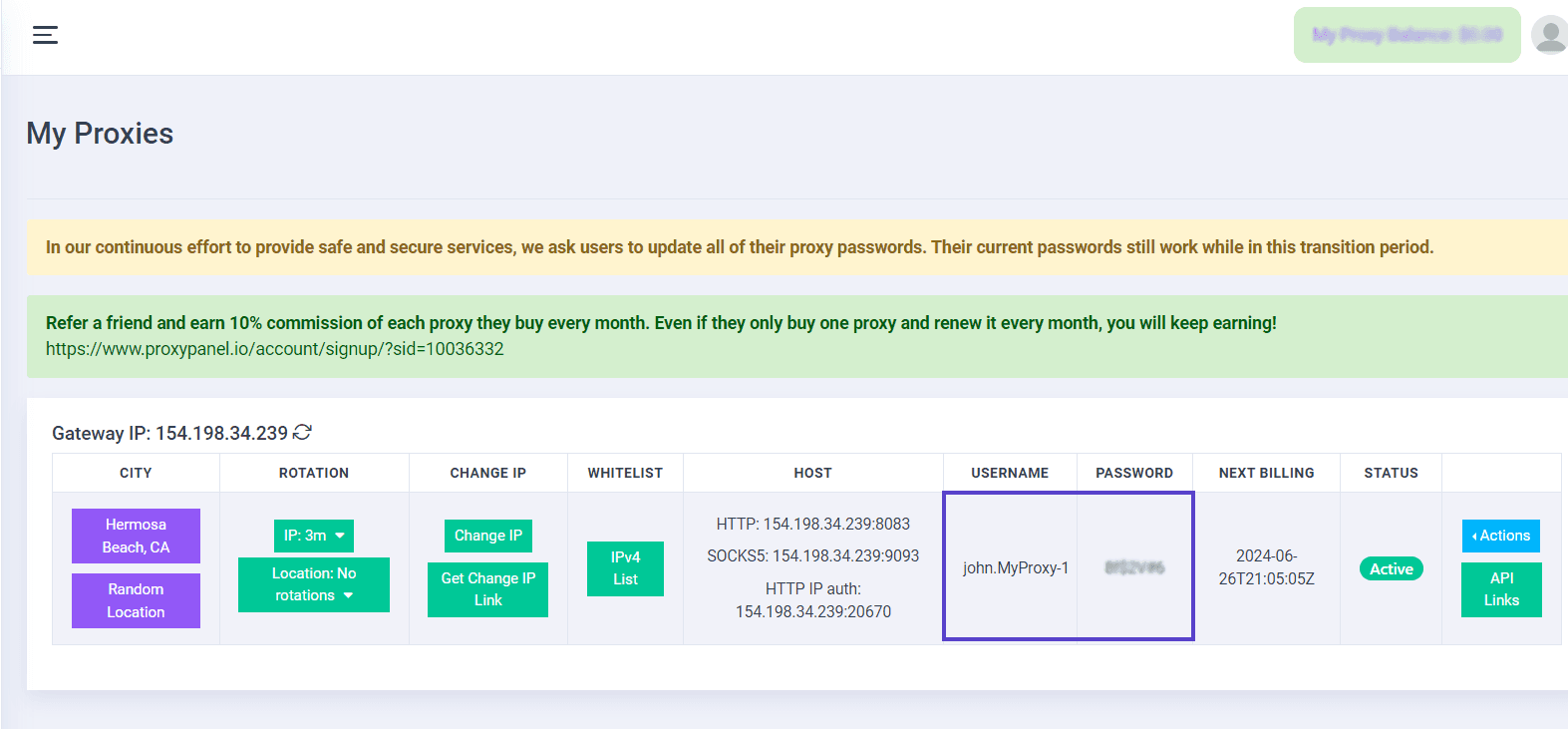
Assign a name to your session and indicate the protocol you prefer for your proxy.For easy setup, you can simply copy and paste your proxy details in the "host:port@username:password" format, available in your ProxyPanel dashboard. Once configured, verify the functionality of your proxy, then click "Save" to confirm the settings.

ProxyPanel accommodates both HTTP(S) and SOCKS5 protocols
Initiate your session by clicking the "Run Session" button located on the left side. This action will generate a new tab within Linken Sphere, enabling you to commence private browsing.

You're all set! Now, you can effortlessly juggle tasks without concerns of disruptions or access restrictions. Each browser instance or tab is identified as a distinct device originating from various locations, elevating your browsing journey.